Updating Firmware
Configuration Reset
Updating your firmware will reset your device's configuration. Ensure your configuration is well documented so you can reconfigure your device before your next show!
Without the Web UI
If your board was purchased before 8/16/26, you will update your firmware manually from the Show Technologies firmware repo.
1. You Will Need
Tools
- Small (1.4mm) slotted screwdriver or large paperclip
Equipment
- USB-C cable
- Internet-connected computer
2. Procedure
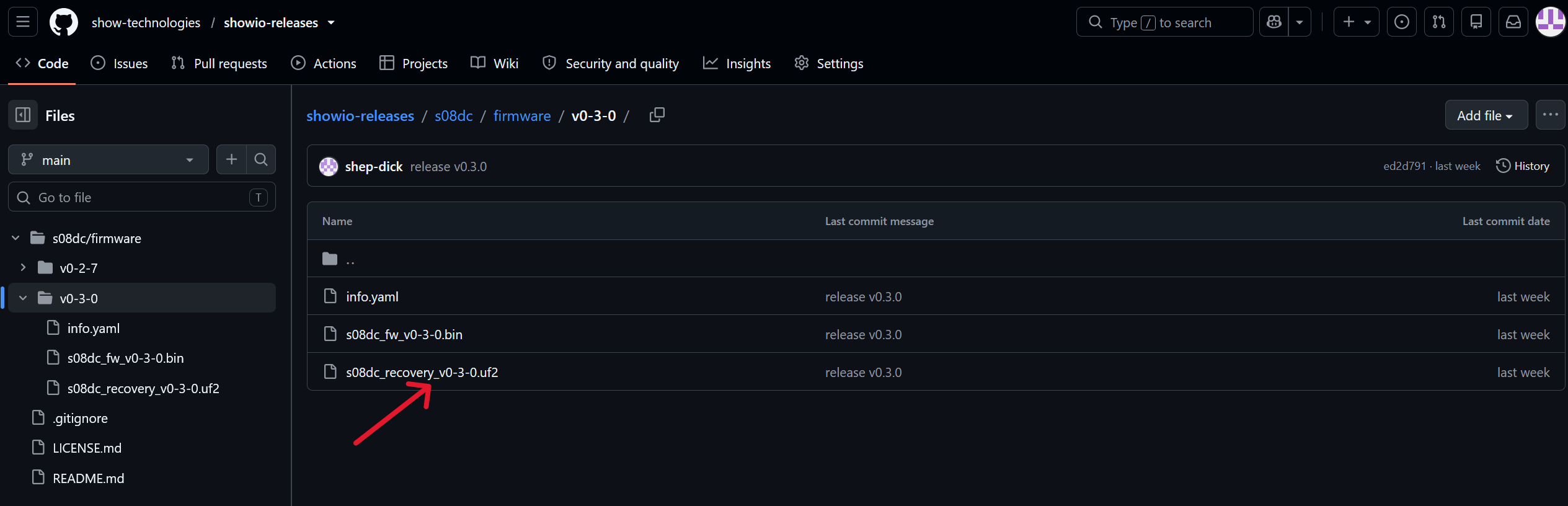
In your web browser, download the .uf2 file for the most up to date firmware version from Github. As of 8/19/2026, the most up to date firmware is version 0.3.1.

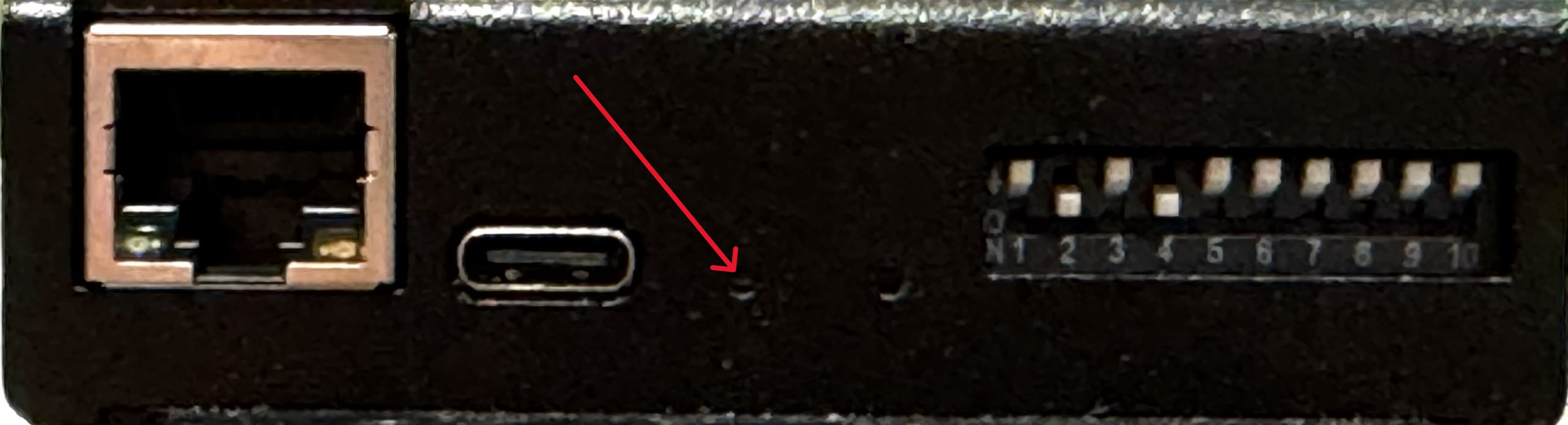
Disconnect your node from all power sources. Plug the device into your computer with the USB-C cable while depressing the boot button, which is the hidden button closest to the ethernet jack (and helpfully labeled on the bare board). This will start your device in Boot Mode; it will be powered on, but the status LED won't be lit.
A new storage device called RPI-RP2 will appear in your computer's file system. You will see two files inside, you do not need to open them and you should not remove them. Copy the .uf2 file that you downloaded into the RPI-RP2 folder, and when the file finishes copying, the storage device should disappear. Power cycle your device, and you will be up and running with updated firmware!

With the Web UI
1. You Will Need
Equipment
- Ethernet Cable
- Computer on a LAN with your ShowIO Node
2. Procedure
Set an IP address on your ShowIO node and power cycle it. Navigate to that IP address in your browser window, and your node will serve the Home Page of the Web UI.
Navigate to the FIRMWARE tab in the sidebar. From here you can check the latest firmware version and compare it against your device's firmware in the bottom left corner. If there is an update available, you can push it to your device using the "Push To Device" button.
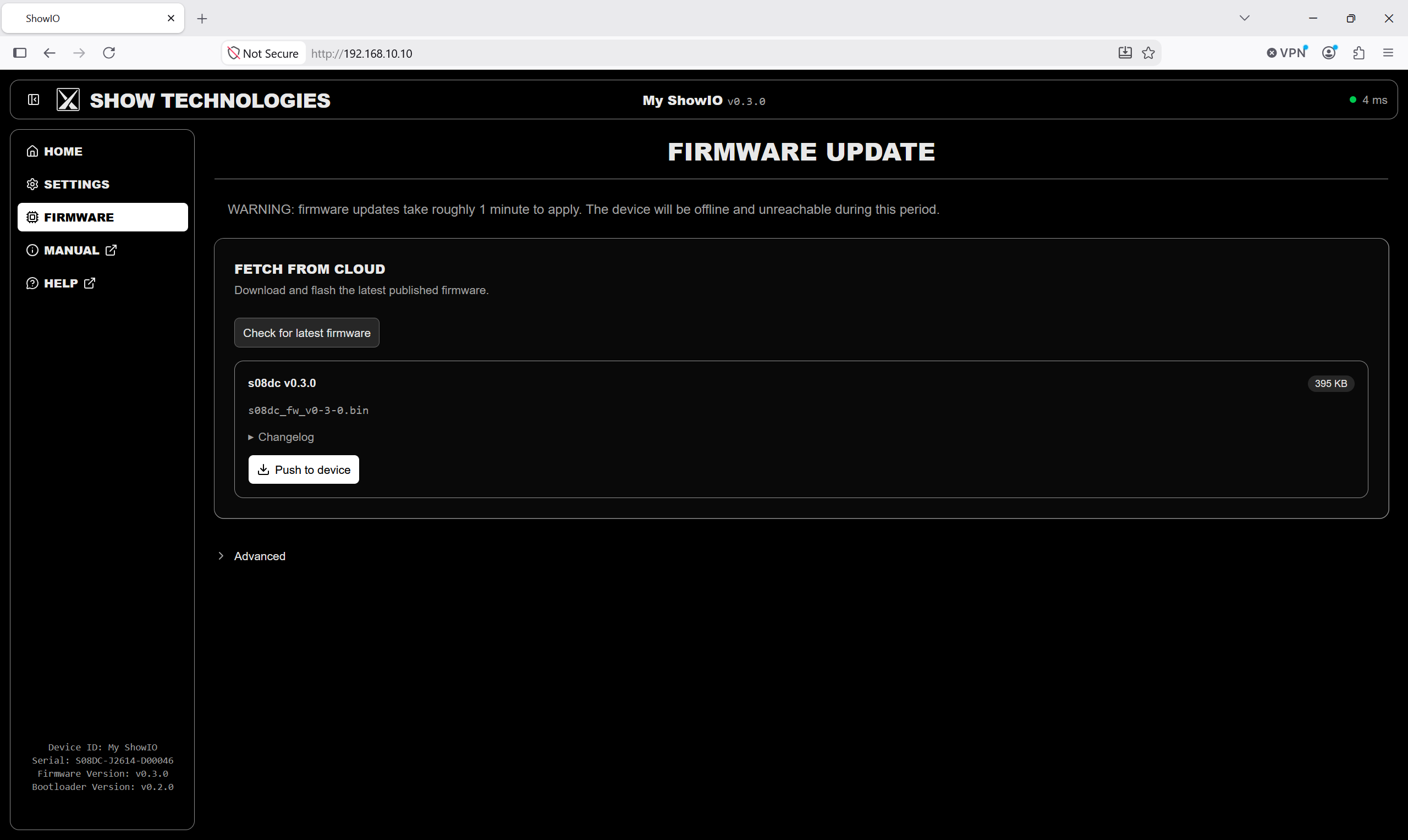
The WebUI will tell you when to reset your device. It will take some time for your node to finish updating its firmware, during which time the status LED will be off. After about a minute of torpor, your node's status LED should light back up, and you will be up and running.